
A least privileged account for AI SQL Tuner Studio ensures your SQL Server stays secure while giving the tool exactly the read-only access it needs. Instead of connecting with a high-privilege sysadmin login, you create a dedicated account with only three permissions: VIEW SERVER STATE, VIEW DATABASE STATE, and VIEW DEFINITION. This page explains why the principle of least privilege matters, provides a ready-to-run T-SQL script you can execute in SQL Server Management Studio (SSMS), and shows how to verify the setup across all user databases.
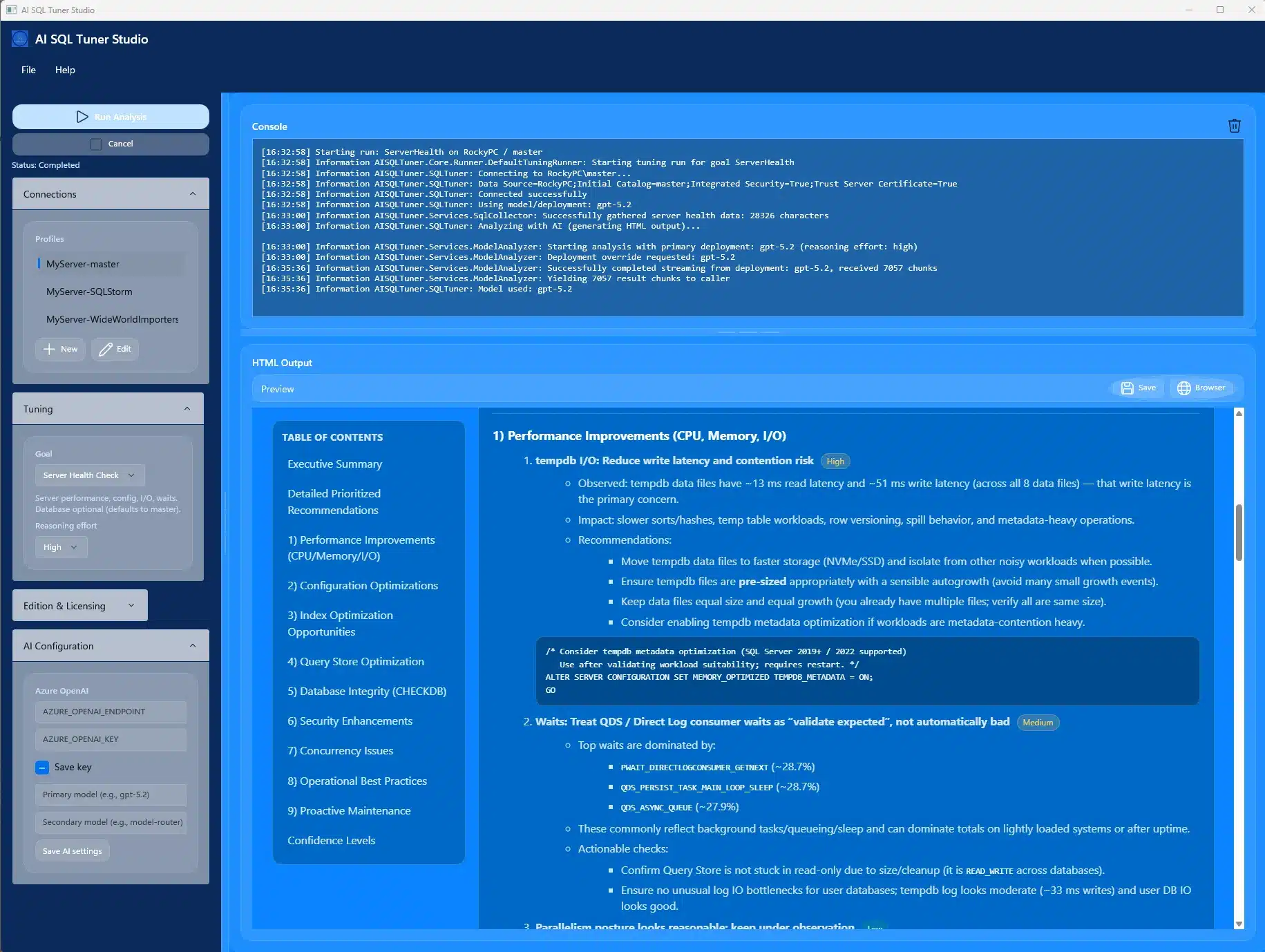
Table of Contents
Why Use a Least Privileged Account?
Running any database tool under a sysadmin or db_owner account exposes your SQL Server to unnecessary risk. A least privileged account for AI SQL Tuner follows the security principle of granting only the minimum permissions required to perform the job. This approach delivers four key benefits:
- Reduce risk: Limit the blast radius of accidental or malicious changes. A read-only account cannot alter data, drop objects, or modify server configuration.
- Protect data: Restrict visibility to what AI SQL Tuner actually needs — performance counters, execution plans, and object metadata — rather than full table access.
- Meet compliance: Align with security best practices such as CIS benchmarks and SOC 2 audit requirements that mandate least-privilege access controls.
- Enable tuning safely: Provide read-only access to the performance and metadata needed for analysis without risking unintended side effects.
Required Permissions for AI SQL Tuner
The least privileged account for AI SQL Tuner requires exactly three server-level and database-level permissions. No additional roles or elevated privileges are needed:
- VIEW SERVER STATE: Read server-level performance data including wait statistics, plan cache contents, and Extended Events sessions. This is the primary permission that enables AI SQL Tuner Studio’s Server Health Check and performance analysis features.
- VIEW DATABASE STATE: Inspect database health, execution statistics, and index usage info within each user database. This powers the CodeReview and Deadlock Analysis features.
- VIEW DEFINITION: Access object metadata — stored procedures, views, functions, and index definitions — for tuning recommendations without modification rights.
Setup Overview
Setting up a least privileged account for AI SQL Tuner takes three steps. The T-SQL script below automates all of them, so you only need to run it once as a sysadmin:
- Create the server-level login with a strong password (run once as sysadmin).
- Map the login to users in all user databases and grant least-privilege rights. The script uses a cursor to loop through every online, non-read-only database automatically.
- Verify permissions at both server and database levels for auditability. The verification section produces a report you can save for compliance documentation.
SQL Script: Least Privilege Security Setup
Copy, review, and run the following script in SQL Server Management Studio (SSMS). Update the password before executing. The script creates a server-level login named AISQLTunerUser, maps it to every online user database, grants the three required permissions, and then runs a verification report.
-- ============================================================================
-- AI SQL Tuner - Least Privilege Security Setup
-- Grants access to all user databases on the server
-- Uses cursor to loop through databases and execute grants
-- ============================================================================

-- Step 1: Create server-level login (run once as sysadmin)
USE master;
GO

-- Drop login if exists (for testing/re-running)
IF EXISTS (SELECT 1 FROM sys.server_principals WHERE name = 'AISQLTuner')
    DROP LOGIN [AISQLTunerUser];
GO

CREATE LOGIN [AISQLTunerUser] WITH PASSWORD = 'YourStrongPassword!';
GO

-- Grant server-level permissions (required for Extended Events and plan cache)
GRANT VIEW SERVER STATE TO [AISQLTunerUser];
GO

-- Step 2: Create database users and grant permissions in ALL user databases
-- This script uses a cursor to loop through each database

DECLARE @dbname NVARCHAR(128);
DECLARE @sql NVARCHAR(MAX);

-- Declare cursor for all user databases
DECLARE db_cursor CURSOR FOR
SELECT name
FROM sys.databases
WHERE database_id > 4  -- Exclude system databases (master, tempdb, model, msdb)
  AND state_desc = 'ONLINE'
  AND is_read_only = 0
ORDER BY name;

-- Open cursor and fetch first database
OPEN db_cursor;
FETCH NEXT FROM db_cursor INTO @dbname;

-- Loop through all databases
WHILE @@FETCH_STATUS = 0
BEGIN
    BEGIN TRY
        PRINT 'Processing database: ' + @dbname;

        -- Build dynamic SQL for current database
        SET @sql = '
        USE [' + @dbname + '];

        -- Create user if not exists
        IF NOT EXISTS (SELECT 1 FROM sys.database_principals WHERE name = ''AISQLTunerUser'')
        BEGIN
            CREATE USER [AISQLTunerUser] FOR LOGIN [AISQLTunerUser];
            PRINT ''  + Created user AISQLTunerUser'';
        END
        ELSE
        BEGIN
            PRINT ''  - User AISQLTunerUser already exists'';
        END

        -- Grant VIEW DATABASE STATE
        GRANT VIEW DATABASE STATE TO [AISQLTunerUser];
        PRINT ''  + Granted VIEW DATABASE STATE'';

        -- Grant VIEW DEFINITION
        GRANT VIEW DEFINITION TO [AISQLTunerUser];
        PRINT ''  + Granted VIEW DEFINITION'';
        ';

        -- Execute the dynamic SQL
        EXEC sp_executesql @sql;

        PRINT '  Successfully configured database: ' + @dbname;
        PRINT '';
    END TRY
    BEGIN CATCH
        PRINT '  ! Error processing database: ' + @dbname;
        PRINT '    Error: ' + ERROR_MESSAGE();
        PRINT '';
    END CATCH

    -- Fetch next database
    FETCH NEXT FROM db_cursor INTO @dbname;
END

-- Clean up cursor
CLOSE db_cursor;
DEALLOCATE db_cursor;

PRINT '============================================================================';
PRINT 'Setup Complete!';
PRINT '============================================================================';
GO

-- Step 3: Verify permissions across all databases
PRINT '';
PRINT '============================================================================';
PRINT 'Verification Report';
PRINT '============================================================================';
PRINT '';

-- Verify server-level permissions
PRINT 'Server-Level Permissions:';
SELECT
    sp.name AS LoginName,
    spe.permission_name,
    spe.state_desc
FROM sys.server_principals sp
LEFT JOIN sys.server_permissions spe ON sp.principal_id = spe.grantee_principal_id
WHERE sp.name = 'AISQLTunerUser'
ORDER BY spe.permission_name;

PRINT '';
PRINT 'Database-Level Permissions:';

-- Verify database-level permissions using cursor
DECLARE @verify_sql NVARCHAR(MAX);
DECLARE @verify_dbname NVARCHAR(128);

DECLARE verify_cursor CURSOR FOR
SELECT name
FROM sys.databases
WHERE database_id > 4
  AND state_desc = 'ONLINE'
ORDER BY name;

OPEN verify_cursor;
FETCH NEXT FROM verify_cursor INTO @verify_dbname;

WHILE @@FETCH_STATUS = 0
BEGIN
    PRINT 'Database: ' + @verify_dbname;

    SET @verify_sql = '
    USE [' + @verify_dbname + '];
    SELECT
        ''' + @verify_dbname + ''' AS DatabaseName,
        dp.name AS UserName,
        dp.type_desc AS UserType,
        ISNULL(dpe.permission_name, ''(no explicit permissions)'') AS Permission,
        ISNULL(dpe.state_desc, ''N/A'') AS State
    FROM sys.database_principals dp
    LEFT JOIN sys.database_permissions dpe ON dp.principal_id = dpe.grantee_principal_id
    WHERE dp.name = ''AISQLTunerUser'';
    ';

    EXEC sp_executesql @verify_sql;
    PRINT '';

    FETCH NEXT FROM verify_cursor INTO @verify_dbname;
END

CLOSE verify_cursor;
DEALLOCATE verify_cursor;

PRINT '============================================================================';
GO
Best Practices
Follow these security guidelines, aligned with Microsoft’s SQL Server security best practices, when configuring your least privileged account for AI SQL Tuner to maintain a strong security posture:
- Use a strong password: Replace the placeholder with a complex, unique password that meets your organization’s password policy. Consider using a password manager.
- Limit sysadmin use: Run the setup script as sysadmin only for initial provisioning. Day-to-day AI SQL Tuner operations use the least privileged AISQLTunerUser account exclusively.
- Audit regularly: Use the verification section of the script to confirm permissions over time. Re-run it after any database changes, migrations, or server upgrades.
- Avoid unnecessary roles: Do not grant db_owner, db_datareader, or elevated server roles. The three VIEW permissions are all AI SQL Tuner needs.
Next Steps
After running the script and verifying permissions, complete these steps to start using your least privileged account with AI SQL Tuner:
- Run the script in SSMS and verify the output shows the correct permissions for each database.
- Configure AI SQL Tuner Studio to use the AISQLTunerUser login. See the User Guide for connection setup instructions.
- Document your setup for audit and operations teams. Save the verification report output for compliance records.
- Configure your AI endpoint to enable using your organization’s endpoint for AI-powered tuning recommendations alongside your secure database connection.
Frequently Asked Questions
What permissions does AI SQL Tuner need on SQL Server?
AI SQL Tuner requires exactly three permissions: VIEW SERVER STATE at the server level, plus VIEW DATABASE STATE and VIEW DEFINITION at the database level for each user database. These are read-only permissions that allow the tool to analyze performance data, execution plans, and object metadata without the ability to modify any data or server settings.
Can I use a sysadmin account instead of a least privileged account?
While a sysadmin account will work technically, it is strongly discouraged. A sysadmin account has full control over the entire SQL Server instance, which violates the principle of least privilege and creates unnecessary security risk. The least privileged account for AI SQL Tuner provides all the access the tool needs without exposing your server to accidental or malicious changes.
Does the script work on Azure SQL Database or Fabric SQL Database?
This script is designed for on-premises SQL Server, SQL Server on Azure Virtual Machines and Azure SQL Managed Instance. Azure SQL Database and Fabric SQL Database use different security models and do not support server-level logins in the same way. For Azure SQL environments, consult the AI SQL Tuner User Guide for platform-specific connection instructions. To see which editions support Azure SQL, visit the edition comparison page.
How do I verify the permissions were applied correctly?
The T-SQL script above includes a built-in verification section (Step 3) that generates a permissions report. It checks server-level permissions for the AISQLTunerUser login and then loops through each database to confirm VIEW DATABASE STATE and VIEW DEFINITION are granted. Run this verification report periodically as part of your security audit process.
Will this account work with all AI SQL Tuner editions?
Yes. The least privileged account configuration works with every AI SQL Tuner Studio edition — Free, Standard, Pro, and Corporate. The required permissions are the same regardless of which edition you use. The only difference between editions is which SQL Server editions and how many servers are supported.